




Repair a Corrupt Word Document. Get Your Text Back.
A document that won't open isn't always lost. Open the damaged file, let it scan, and rescue the text and images still readable inside — then rebuild a clean, working .docx. You see exactly what came back, verified to open, before you save it.
100% offline · runs entirely on-device · original file never modified
A corrupt Word document tends to fail at the worst possible moment — the essay, report, or proposal you need throws an error and simply refuses to open. The reassuring part is that a damaged document is rarely empty inside. Most of the time the words themselves are intact; what's broken is the wrapping around them — an interrupted save, a truncated download, a damaged archive structure, or contents that no longer match the file's extension. Word Repair from Rush Tools is built for exactly this. It opens a broken DOCX, DOC, RTF, or TXT file that Word and the Files app refuse to touch, parses around the damage, and pulls back the text and images it can read — giving a file you'd written off a real chance of becoming usable again.
The app behaves like a careful recovery tool, not a magic button. When you open a damaged .docx it parses past the corruption, gathers everything readable, and rebuilds a brand-new clean document from what it finds — recovered text and any images that survive. Your original file is never modified; the app only reads from it and writes the recovery into a separate file. It then shows an honest report that sorts the outcome into Recovered, Partial, and Lost, and tells you how much came back: words, paragraphs, tables, and images. Older .doc files plus .rtf and .txt are handled as a best-effort text salvage — the app pulls out the readable text rather than performing a full structural rebuild. There's no formatting touch-up and no false promise to reconstruct what's genuinely gone, just the most faithful recovery the file allows.
Everything stays on your device. Your document is never uploaded, copied to a server, routed through the cloud, or sent to any AI service — there's no account to create and nothing phoning home in the background, which matters when the file holds a thesis, client work, or private notes. To remove the guesswork, Word Repair verifies the rebuilt file by re-opening it, so you know it actually opens cleanly before you save. The app runs on iPhone, iPad, and Mac. A few honest limits up front: password-protected or encrypted documents and macros are detected and reported but not recovered, it can't retrieve unsaved autosave drafts or files deleted from another device, and severely damaged files may only partially recover.
It is not a document editor and does not fix formatting or spelling — its one job is to get your readable content back out of a file that no longer opens.
The error that won't let your file open.
These are the messages a corrupt or damaged document usually shows. Whatever the wording, the fix is the same — open the file here and let it scan for everything still readable inside.
“The file is corrupted and cannot be opened”
The classic dead end. Open the file here so the scan can parse past the broken wrapper and rescue the text still inside.
“Word found unreadable content”
Part of the document is damaged. The app parses around the bad sections and recovers the text and images that survive.
“This file is corrupt and cannot be opened”
A damaged DOCX or DOC still typically holds its words. Open it to see exactly how much can be rescued, then verified to open.
“We found a problem with some content”
A section of the file is broken. The scan reads the readable content the normal opener skipped over.
“The file appears to be corrupted”
A common sign the document structure is damaged. The app rebuilds a clean new file from whatever it can read.
“The file cannot be opened because there are problems with the contents”
Usually a damaged archive or a truncated save. The scan looks deeper than the surface to find recoverable text.
“The document name or path is not valid”
Sometimes a sign of a damaged or mismatched file. Open it here and let the scan identify what it can actually read.
“Unable to read file”
A generic open failure across apps. The recovery scan tries to extract the text and images the normal opener gave up on.
“There was a problem opening the file”
A vague failure that often hides recoverable content. Run the file through a full scan to see what comes back.
“Word experienced an error trying to open the file”
The built-in opener stalled on damage. The app parses around it and rebuilds a clean document from the readable parts.
“The file you are trying to open is in a different format than specified by the file extension”
The contents and the .docx or .doc extension disagree. The app reads the real content and salvages the text from it.
“Do you want to recover the contents of this document”
If the built-in prompt returns little or nothing, run the same file through a full recovery scan here instead.
From broken file to clean export.
Open the broken file
Pick the corrupt or unreadable document — DOCX, DOC, RTF, or TXT. It opens on your device; nothing is uploaded and the original is never modified.
Scan & rebuild
The app parses around the damage and rescues the readable text and images, rebuilding a brand-new clean .docx from what it finds.
Review the honest report
See the outcome sorted into Recovered, Partial, and Lost — with counts of words, paragraphs, tables, and images — and preview the result before paying.
Verify & export
The app re-opens the rebuilt file to confirm it opens cleanly, then you export a working document as .docx, .txt, or .rtf.
Every document format, one app.
The modern Word document. Full repair — parses around the damage and rebuilds a brand-new clean .docx, recovering text and images, then verifies it opens.
The legacy Word format. Best-effort text salvage — pulls the readable text out of older damaged files rather than a full structural rebuild.
Rich Text Format. Best-effort text salvage — extracts the readable text from a broken or malformed RTF file.
Plain text. Best-effort text salvage — reads what's recoverable from a damaged or unreadable text file.
A careful recovery tool, not a magic button.
Parses Around the Damage
Reads past the broken wrapper of a corrupt document to reach the content still inside, recovering text and images a normal open can't reach.
Rebuilds a Clean New DOCX
Writes a fresh, well-formed .docx from the rescued content — a working file that opens normally, not a patched-over broken one.
Original File Never Modified
The app only reads from your broken file and writes recovery into a separate document, so you never overwrite or lose the source.
Verifies the Result
After rebuilding, it re-opens the recovered file to confirm it actually opens cleanly — so you're not exporting another file that fails.
Honest Recovery Report
Sorts the outcome into Recovered, Partial, and Lost and counts the words, paragraphs, tables, and images that came back. No guessing.
Recovers Text and Images
Pulls back the readable words and any images that survive the damage — the most faithful salvage the file allows.
100% On-Device
Your document is scanned and rebuilt entirely on your iPhone, iPad, or Mac — no cloud upload, no account, no telemetry, no AI service.
Straight About Limits
Password-protected or encrypted documents and macros are detected and reported but not recovered, and severely damaged files may only partially recover — all shown up front.
See it on every device.
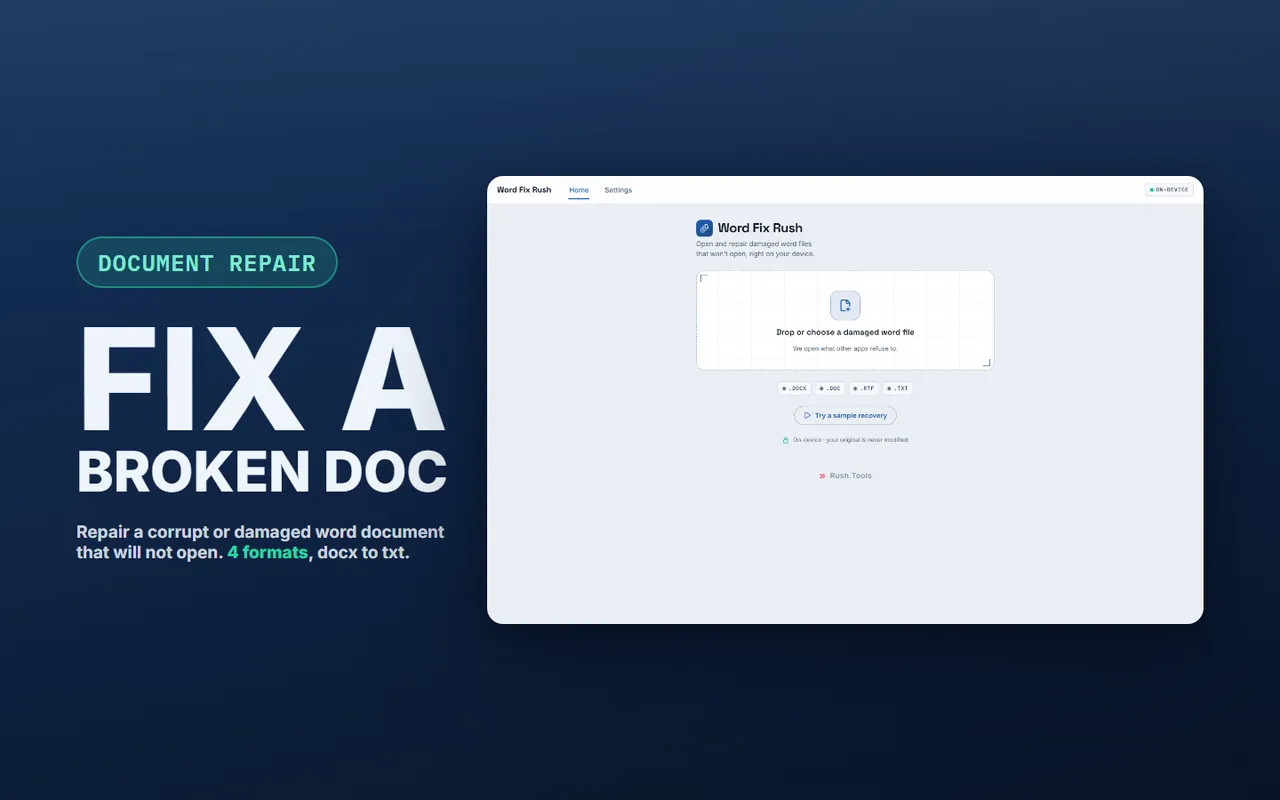
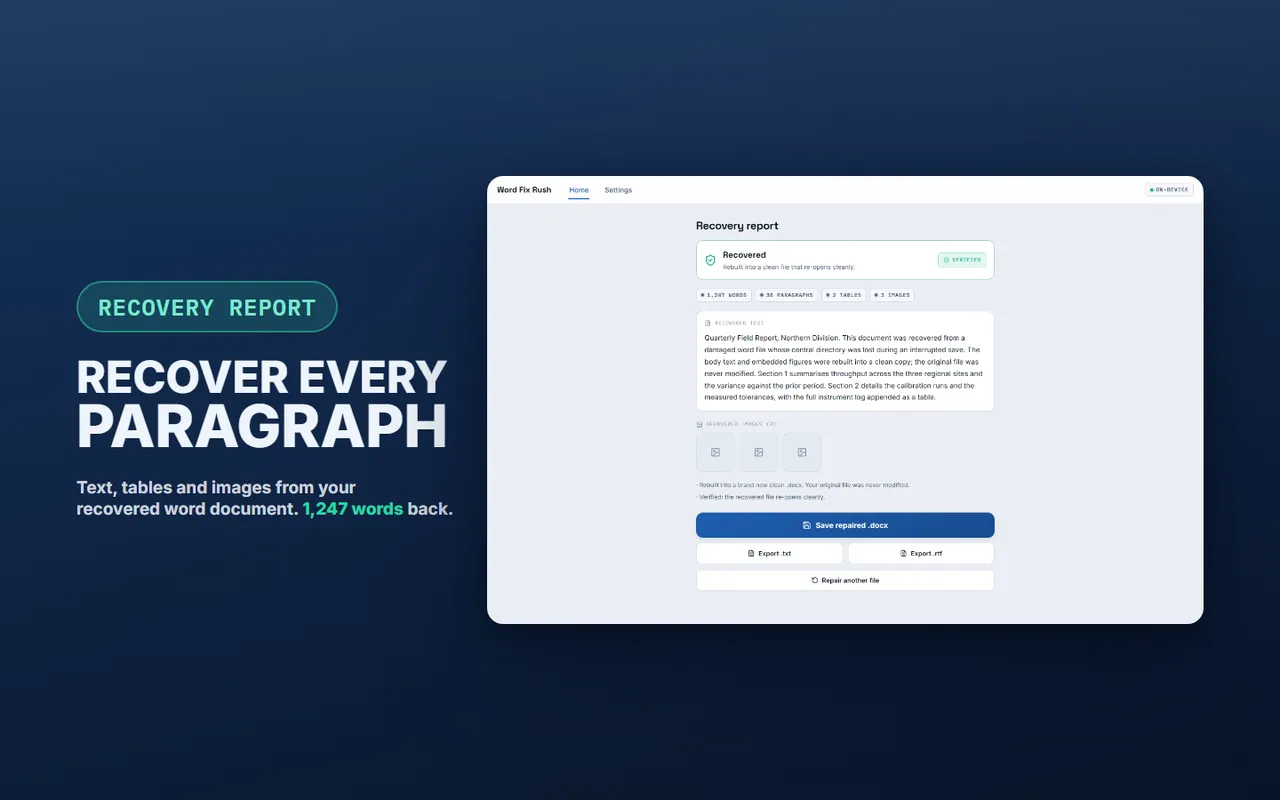
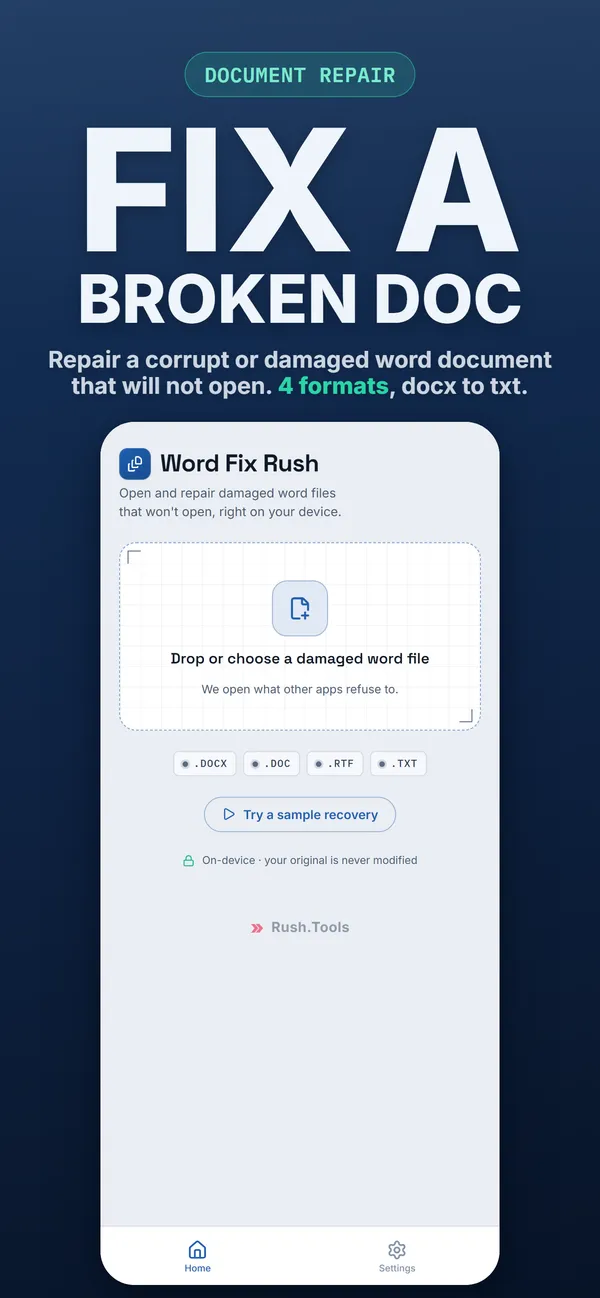
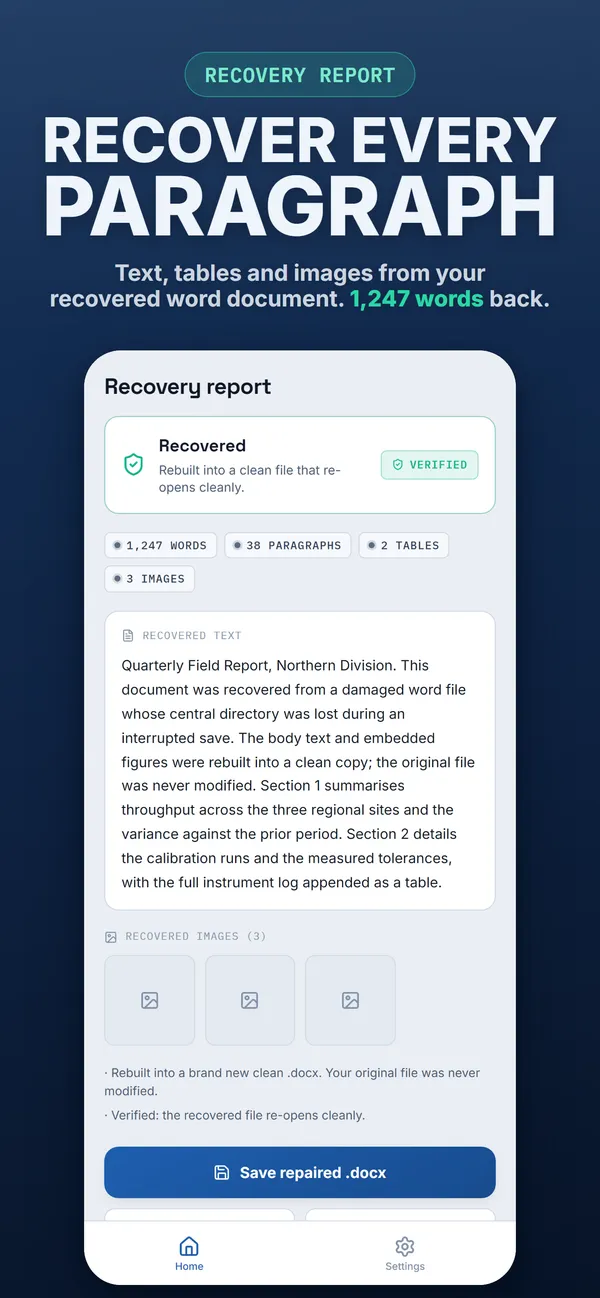
Every scan, repair, preview, and export runs on your device. Your document is never uploaded to a server, routed through the cloud, or sent to an AI service — no account, no telemetry, no tracking.
The app only reads from your broken file and writes recovery into a clean new one. It even verifies the result by re-opening it, and you can confirm the source is untouched by reopening your original.
Open, scan, repair, and preview the recovery first, so you can see what came back before you export it.
- Recovering a corrupt DOCX that won't open the night an essay, thesis, or report is due, when the broken copy is the only one you have.
- Rescuing text from a document damaged by an interrupted save, a failed transfer, or a half-finished cloud sync.
- Opening a file that throws a 'file is corrupted and cannot be opened' error after being downloaded, emailed, or moved between devices.
- Salvaging an old DOC or RTF file that newer apps refuse to open or report as unreadable.
- Getting the readable text out of a damaged document and exporting it as a clean .docx, .txt, or .rtf so you can keep working.
- Recovering thesis, client, or business writing without uploading a private document to an online repair service.
Download it and open your first damaged document straight away. There is no account to create, and nothing about your files leaves the device.
Repairing corrupt documents.
Can this really repair a corrupt Word document?
In most cases, yes. A damaged document is rarely empty — usually the text is intact and only the file's wrapper is broken. For a .docx the app parses around the damage and rebuilds a clean new file from what it can read, then verifies it opens. Some severely damaged files only partially recover, and the report tells you that clearly.
How do I fix a DOCX file that won't open?
Open the file in the app and let it scan. It parses deep into the document, rescues the readable text and images, and rebuilds a brand-new clean .docx. It then re-opens that file to confirm it works, and you review everything that was recovered before exporting.
Which file types can it repair?
A .docx gets a full repair — it's rebuilt into a clean new document. Legacy .doc files plus .rtf and .txt get a best-effort text salvage, where the app pulls out the readable text rather than performing a full structural rebuild. You can export the result as .docx, .txt, or .rtf.
What exactly does it recover?
The readable text and any images that survive the damage. For a .docx it rebuilds those into a clean new document and reports the words, paragraphs, tables, and images recovered. It does not fix formatting or spelling, and it is not a document editor.
Does it change my original file?
No. The original broken file is left completely untouched. The app reads from it and writes the recovered content into a separate, clean file, so you never lose the source — and you can confirm that any time by reopening your original.
How do I know the recovered file actually works?
The app verifies the rebuilt file by re-opening it after recovery, so you know it opens cleanly before you save. The recovery report also sorts the outcome into Recovered, Partial, and Lost, so the result is never a mystery.
Is my document uploaded anywhere?
No. Everything happens on your device. The file is never uploaded to a server, copied to the cloud, or sent to any AI service. There's no account to create and no telemetry — which matters when the document is private or sensitive.
Can it open password-protected or encrypted documents?
No. Password-protected and encrypted documents are not supported. The app detects and reports them up front, but it does not crack, bypass, or remove passwords. Macros are also detected and reported but not recovered.
Can I recover an unsaved document or one I deleted?
No. The app repairs a damaged file you still have on your device. It can't retrieve unsaved autosave drafts, and it can't recover files that were deleted or that live only on another device.
Can I see what was recovered before paying?
Yes. Open the file, let it scan, and preview the recovery. The preview shows the start of the recovered text clearly with the rest blurred, and recovered images as locked thumbnails, so you can judge the result before you decide to export.
What can I export the recovered file as?
You can save the recovered document as .docx, .txt, or .rtf. The app does not export PDF.
My file says the format and extension don't match. Can this help?
Often, yes. That usually means a file was saved or renamed with the wrong extension, or its contents were partly damaged. The app reads the real content and recovers the readable text from it rather than trusting the extension.
Do I need Word or a computer to use it?
No. It's a standalone app for iPhone, iPad, and Mac. You don't need a desktop word processor, a separate repair tool, or any online service.
Does it work offline?
Completely. The entire scan, repair, preview, and export runs on-device, so it works with no internet connection at all and your document never leaves the device.
What if my file is too damaged to recover?
Some files are damaged beyond full recovery, and the app is honest about it — the report sorts content into Recovered, Partial, and Lost. The preview shows you what came back before you export.
What people open next.
Every Rush tool runs entirely on your device. These are the ones that come up in the same job as this one.
- XLSX & XLS Repair.xlsx · .xlsThe same recovery pass for spreadsheets from the same damaged drive or folder.
- MHT Viewer.mhtWord saves single-file web pages as .mht — this opens them when Word will not.
- PDF to XML Converter.pdf → .xmlTo pull structured text back out of a PDF when the source document is gone.
Don't write off that broken document yet.
Open the corrupt file, see exactly how much text and how many images can be rescued, and export a clean working copy verified to open — all on your own device.